

GKE IP Exhaustion 2026: The /24 Trap & Autopilot’s Hidden Cost
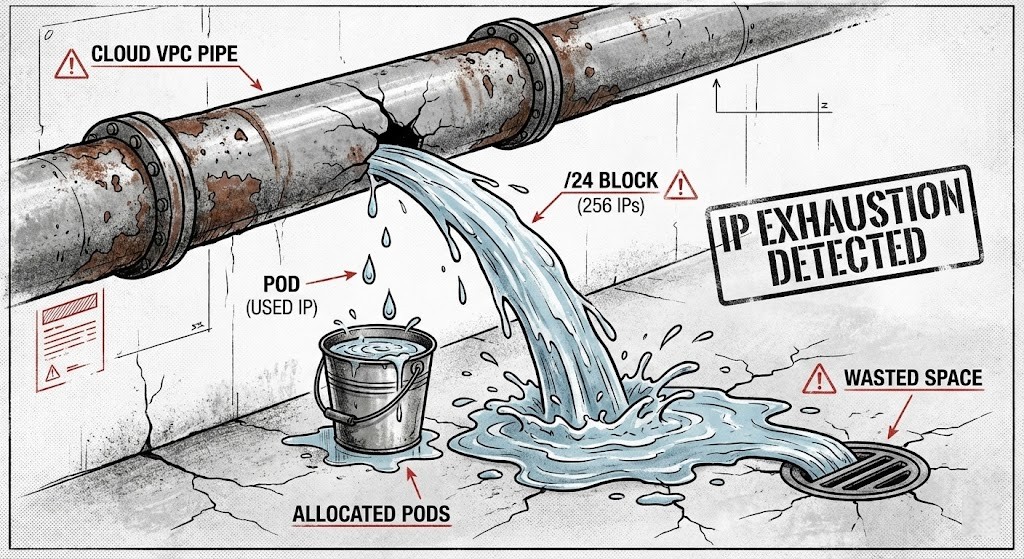
The “Stockout” Error on a Healthy Subnet
It’s 2 PM on a random Tuesday, and suddenly the Cluster Autoscaler throws a warning: Unschedulable—No free IPs in subnet.
You open up the VPC. The subnet’s a /20, so that’s 4,096 IPs. You only have 15 nodes. Quick math: 15 nodes, maybe 30 pods each, tops. That’s 450 IPs. You should have more than 3,500 left, easy.
But gcloud tells you there are zero.
This is the kind of problem that sneaks up on GKE clusters all the time. You’re not out of actual capacity—you’re out of available allocations. GKE’s default setup assumes every node will run 110 pods. Maybe that made sense in theory, but in reality? Your nodes barely hit 15 pods, and you end up wasting nearly 90% of your IP space.
And if you’ve got GKE Autopilot on, it’s even worse.
The /24 Default—How the Math Eats Your Space
Let’s get into the numbers Google doesn’t put in the sales pitch.
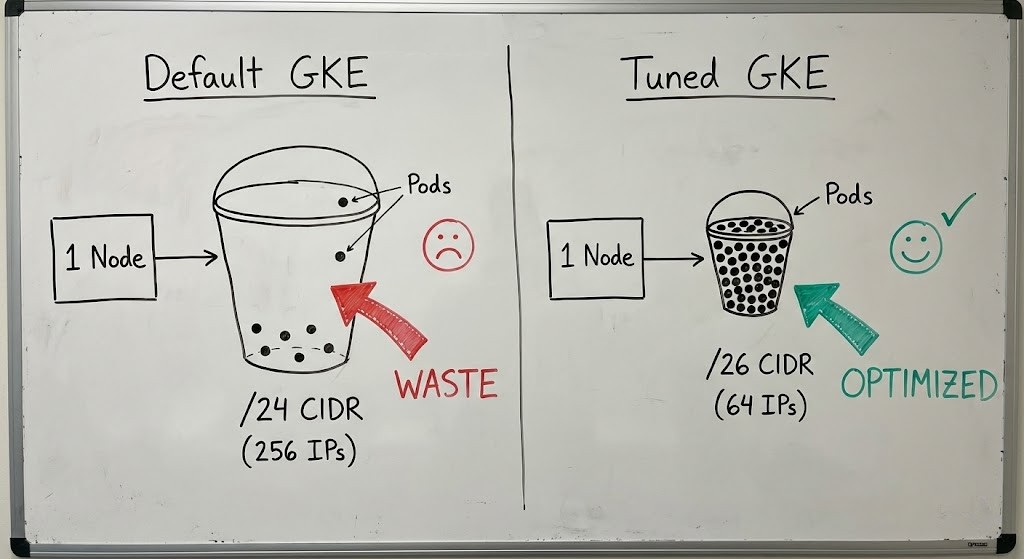
When you spin up a VPC-native cluster (which is the default now), GKE hands out a dedicated Pod CIDR range to every node. That chunk is locked to that node. Nobody else can touch those IPs, whether they’re used or not.
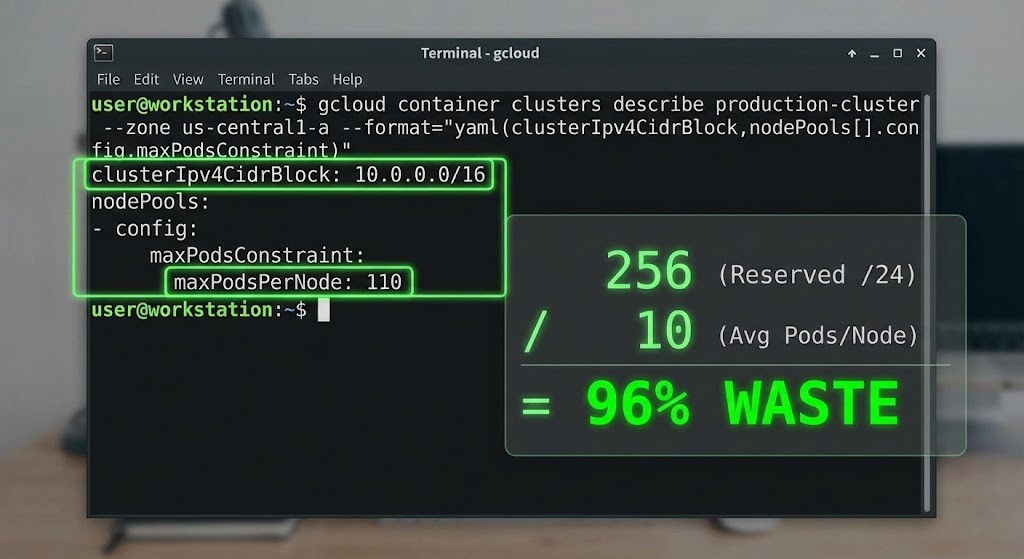
Here’s the catch: GKE sets max_pods_per_node to 110 by default. The IP allocator needs a block big enough, so it rounds up to the next power of two.
110? Next power of two is 256. So each new node grabs a /24 (256 IPs) from your secondary subnet.
Now, if your subnet is a /20 (4,096 IPs), you only get 16 nodes: 16 nodes × 256 IPs = 4,096.
That’s it. Just 16 nodes.
But if those nodes only run 10 tiny services each, you’re actually using 160 IPs. You’re wasting 3,936.
The Autopilot Trap
Autopilot changes things. Instead of fewer, bigger nodes, it tries to pack things tight, often spinning up smaller nodes for specific pod requests.
In standard GKE, you might have a handful of big nodes, each grabbing a /24. But Autopilot? It throws up more, smaller nodes—and you blow through those /24 allocations three times faster.
I ran into this exact mess with a client. Their cluster burned through the entire VPC, not because of a bug, but because that’s exactly how the IP math works. (Read the triage story here: Client’s GKE Cluster Ate Their Entire VPC: The IP Math I Uncovered During Triage).
How to Fix It—Or at Least Survive
You can’t fix the math, but you can change the variables.
1. Tune max_pods_per_node
This is your main tool. If you know your nodes only ever need 30 pods (counting sidecars, daemonsets, and your app), set max_pods to 32.
- Target: 32 pods.
- Next power of two: 64.
- CIDR:
/26.
Now, instead of just 16 nodes in your /20 subnet, you can fit 64 nodes. You’ve quadrupled your cluster capacity, all without adding a single new IP.
Here’s what it looks like in Terraform:
Terraform
resource "google_container_cluster" "primary" {
  ip_allocation_policy {
    cluster_secondary_range_name  = "pods-range"
    services_secondary_range_name = "services-range"
  }

  default_max_pods_per_node = 32 # This forces a /26 CIDR per node
}
Heads up: You can’t change this on an existing node pool. You’ll need to recreate the pools.
2. The Class E “Hail Mary”
If you’re reading this because production is already dead in the water and rebuilding isn’t an option, you’ve got one last move: Class E space (240.0.0.0/4).
Google Cloud (and AWS/Azure) now support this experimental range for VPC subnets. That’s 268 million IPs that don’t overlap with the usual RFC1918 ranges. We used this trick to rescue a client from a forced rebuild. The details are in Client’s GKE Cluster Ate Their Entire VPC: The Class E Rescue (Part 2).
3. Hunt Down “Zombie” Allocations
Sometimes the API says you’re using more space than you really are. We’ve seen cases where gcloud hides what the API actually knows about Service CIDRs. If you want to see what’s really reserved, check out The GKE “Zombie” Feature and audit your allocations.
Architect’s Verdict
I’m tired of seeing VPCs set up with 10.0.0.0/8 “just in case.” That kind of lazy planning is how we end up in these messes.
- Stop defaulting. Don’t assume
max_pods=110is right. That’s a holdover from 2018. Do the math for your actual workload. - Watch out for Autopilot. If you’re using Autopilot, you have to use a larger secondary range (like Class E) because you can’t control the node sizing.
- Monitor allocations. Most importantly, monitor allocations, not just usage. Your dashboard shows Pod Count, but the VPC cares about Node Count. Those aren’t the same thing.
If you’re just starting to build your Modern Infrastructure Pillar, get network planning right on day one. If you’re already stuck, dive into the Modern Infra & IaC Learning Path and learn how to Terraform your way out.
Additional Resources
- Google Cloud Docs: VPC-native clusters and IP allocation – The official math behind the /24 default and Alias IPs.
- Kubernetes Docs: Cluster Networking – Pod CIDR fundamentals and node IPAM controller logic.
- IETF: RFC 1918 Address Allocation – The standard defining Private IP space constraints.
Editorial Integrity & Security Protocol
This technical deep-dive adheres to the Rack2Cloud Deterministic Integrity Standard. All benchmarks and security audits are derived from zero-trust validation protocols within our isolated lab environments. No vendor influence.

R.M.
Senior Solutions Architect with 25+ years of experience in HCI, cloud strategy, and data resilience. As the lead behind Rack2Cloud, I focus on lab-verified guidance for complex enterprise transitions. View Credentials →
Get the Playbooks Vendors Won’t Publish
Choose the architecture problems you care about. Get field-tested playbooks and frameworks delivered to your inbox.
- > AI Infrastructure & Inference Economics
- > Cloud Strategy & Hidden Cost Models
- > Virtualization & Deterministic Migration
- > Kubernetes, IaC & Modern Infrastructure
- > Data Protection & Recovery Engineering
Zero spam. Includes The Dispatch weekly drop.
Need Architectural Guidance?
Independent review before major infrastructure decisions.
- > Validate assumptions
- > Identify hidden dependencies
- > Quantify migration risk
- > Challenge vendor narratives
Triage · Advisory · Fractional · Direct Hire