

Beyond the Migration: Best Practices for Running Omnissa Horizon 8 on Nutanix AHV
In the previous guide, we covered the milestone of Omnissa (formerly VMware EUC) officially supporting Horizon 8 on Nutanix AHV — the “why” and high-level “how” of migrating workloads off ESXi onto the native Nutanix hypervisor.
Now the dust has settled. Your connection servers are talking to Prism Element, your golden images are converted, and your users are logging in. Welcome to Day-2.

Running VDI at scale is a different beast than migrating it. VDI is perhaps the most abrasive workload in the datacenter — extremely sensitive to latency, generating massive random I/O storms, and demanding consistent CPU scheduling. Nutanix AHV is purpose-built to handle this, but out-of-the-box settings only get you so far.
To understand the storage performance physics underlying everything in this guide — specifically why Nutanix AHV and vSAN behave differently under the random I/O storms VDI generates — see the Nutanix AHV vs vSAN 8 ESA Saturation Benchmark. The sawtooth vs plateau behavior under write saturation directly explains why AHV’s CVM throttling produces a smoother VDI experience than vSAN’s burst-and-stall pattern.
The Storage Layer: Mastering I/O Storms
In VDI, storage latency is the enemy of user experience. When 500 users log in at 9:00 AM, they simultaneously hit the storage subsystem for read operations. If storage chokes, logins hang, profiles load slowly, and the support tickets start.
Nutanix solves this differently than traditional SANs — primarily through data locality and advanced caching.
The #1 Rule: Leverage Shadow Clones
f you remember one thing from this guide, remember Shadow Clones. This is Nutanix’s decisive advantage for non-persistent VDI (Instant Clones).
When you deploy hundreds of desktops from a single master image, that master virtual disk becomes a massive read hotspot. Every node in the cluster tries to read from the same source — across the network, at the same time, during a boot storm.
How Shadow Clones solve this: AHV detects a vDisk being read by multiple VMs across different nodes — like a Horizon replica disk. Instead of forcing all nodes to read from the original copy across the network fabric, AHV automatically creates cached copies of that vDisk on the local SSD tier of every node running those desktops.
The result: Boot storm read I/O is served locally from flash, bypassing the network entirely and dramatically reducing latency. This is the same data locality principle that governs CVM architecture — keep the I/O path as short as physically possible.
Best Practice: Store Horizon master images in a container where Shadow Clones can operate effectively. Monitor Prism during boot storms to verify that remote reads on desktop VMs are minimal. If you are seeing high remote read percentages, your Shadow Clone configuration needs attention before you scale the pool.

Container Configuration: Compression is King
For your VDI storage containers on Nutanix:
- Inline Compression: Enable it. VDI OS disks compress extremely well. This saves capacity and can actually improve performance by reducing the amount of data written to flash
- Deduplication: Use selectively. For modern non-persistent Instant Clone pools, deduplication benefits are often marginal compared to the overhead — desktops are already clones of a master. Inline compression delivers better ROI here. Deduplication is more effective for persistent, full-clone desktop pools where unique data accumulates over time
The Compute Layer: Sizing and Scheduling
AHV’s CPU scheduler is designed to keep virtual CPUs running on physical cores local to their memory — the same NUMA-aware scheduling that governs all AHV workloads. VDI is particularly sensitive to scheduler decisions because users feel CPU starvation instantly as mouse stutter and application lag.
Right-Sizing vCPU to pCore Ratios
VDI thrives on oversubscription — but there is a breaking point. Oversubscribe too heavily and users experience CPU Ready Time issues that manifest as desktop unresponsiveness.
- Knowledge Worker VDI: 6:1 to 8:1 vCPU to physical core ratio for general Windows 10/11 desktops
- Power User VDI: 4:1 to 5:1 for heavier workloads — CAD, medical imaging, financial modeling
Critical note: Do not assume your ESXi ratios will transfer directly to AHV. Start conservative, monitor CPU Ready Time in Prism — anything consistently above 5% per vCPU warrants investigation — and adjust density upward only if metrics support it.
For a deep explanation of why CPU Ready Time and CPU Wait manifest differently on AHV vs ESXi — and the exact esxtop and Prism commands to diagnose scheduler contention — see the CPU Ready vs CPU Wait guide. The AHV scheduler section maps directly to the VDI density problem.
NUMA Awareness
Modern servers have Non-Uniform Memory Access architectures. Accessing memory on the local CPU socket is fast — crossing to the other socket adds latency that compounds under VDI load.
AHV is NUMA-aware by default. Because VDI VMs are typically small — 2-4 vCPUs, 8-16GB RAM — they easily fit within a single NUMA node. AHV naturally localizes a desktop VM’s compute and memory to the same socket, ensuring maximum memory bandwidth without configuration.
Best Practice: Avoid creating oversized VDI VMs that span NUMA nodes unless the workload genuinely requires it. A 16-vCPU power user desktop that crosses NUMA boundaries will perform worse than two properly sized 8-vCPU VMs on separate nodes.
The Networking Layer: Segmentation and Flow
VDI traffic has two distinct profiles: infrastructure traffic (Horizon components communicating with databases and Active Directory) and display protocol traffic (Blast Extreme or PCoIP carrying pixels to endpoints). Both need their own lanes.
VDI VLAN Segregation
Never run VDI desktops on the same VLAN as your Nutanix CVMs or hypervisor management interfaces. Display protocol traffic is heavy and bursty — it will compete with storage replication traffic if not isolated.
Best Practice: Create dedicated VLANs in AHV for each desktop pool type — knowledge workers, power users, and kiosk sessions separately. Isolate display protocol traffic from infrastructure traffic at the switch level.
Secure the Desktops with Nutanix Flow
VDI desktops are a high-risk attack surface. Users interact with the internet, open email attachments, and browse external sites. If a desktop gets infected, lateral movement to other desktops or back into the datacenter is the real threat — not the initial compromise.
Best Practice: Use Nutanix Flow Microsegmentation. Unlike perimeter firewalls, Flow applies stateful firewall policies directly to the AHV vNIC of each VM — enforcing security at the workload level regardless of VLAN topology.
Policy example for a standard desktop pool:
- Allow desktop → internet on port 443
- Allow desktop → Horizon Connection Servers on required ports
- Block all desktop-to-desktop (east-west) traffic within the pool
There is rarely a valid business reason for Desktop A to communicate directly with Desktop B. That blocked path is what contains a ransomware event to a single session rather than a full pool.
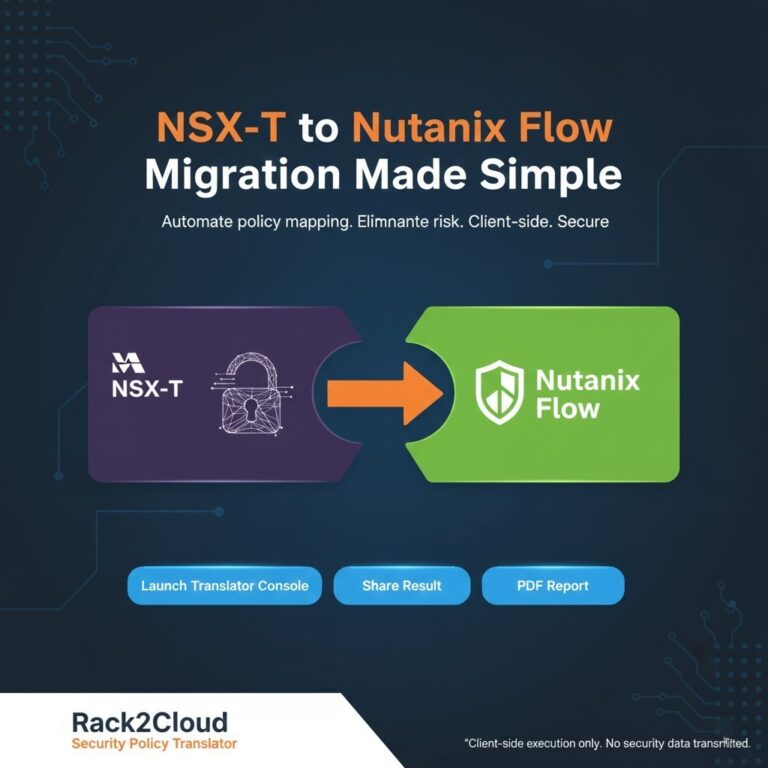
If you are migrating from NSX-T micro-segmentation policies on ESXi to Nutanix Flow, the translation does not need to be manual. The NSX-T to Flow Translator maps your existing VMware NSX-T firewall rules to Nutanix Flow automatically — preserving your security posture through the migration without rebuilding policies from scratch.

The Horizon Layer: Image Optimization
The underlying infrastructure can be perfectly tuned — but a bloated Windows image will still produce a poor user experience. Image optimization is the last mile of VDI performance.
The Omnissa OS Optimization Tool (OSOT)
If you used OSOT on vSphere, it remains critical on AHV. A stock Windows installation is loaded with background indexing, telemetry services, and visual effects that consume CPU and I/O without contributing to the user session.
Best Practice: Run standard OSOT templates on your golden image before finalizing it. Strip the bloat before the image is sealed and deployed to the pool — not after users start reporting performance issues.
Nutanix Guest Tools (NGT)
Ensure NGT is installed in your golden image. NGT provides the necessary virtio network and SCSI drivers for AHV and enables application-consistent snapshots for persistent VMs. Missing NGT is one of the most common causes of unexpected I/O behavior on AHV desktops that were migrated from ESXi without a clean image rebuild.
Graphics Acceleration (vGPU)
For architects, engineers, or medical professionals using graphically intensive applications, standard virtualized graphics will not deliver an acceptable experience.
Best Practice: AHV integrates directly with NVIDIA vGPU. If your Nutanix nodes carry NVIDIA GPUs, configure the required vGPU profiles in AHV and assign them to power user desktop pools in Horizon. The result is native-like graphics performance without dedicated physical workstations.
For a lab environment to test golden image builds, OSOT configurations, and vGPU profiles before rolling out to production pools, DigitalOcean bare metal nodes provide a cost-effective way to validate AHV image builds outside your production cluster.
Conclusion: Day-2 Is Where VDI is Won or Lost
Running Omnissa Horizon 8 on Nutanix AHV is a powerful combination — market-leading VDI broker, leading HCI platform, no vTax. But the combination only delivers on its promise if the Day-2 configuration work is done properly.
The three practices that move the needle most:
- Shadow Clones — eliminate boot storm latency at the storage layer
- CPU ratio discipline — start conservative, monitor CPU Ready Time, scale only when metrics allow
- Flow east-west blocking — contain the inevitable desktop compromise before it becomes a datacenter incident
For the full structured progression — from Horizon migration planning through Day-2 operational tuning through long-term VDI scaling — see the End User Computing Learning Path and the HCI Architecture Learning Path.
Additional Resources
Editorial Integrity & Security Protocol
This technical deep-dive adheres to the Rack2Cloud Deterministic Integrity Standard. All benchmarks and security audits are derived from zero-trust validation protocols within our isolated lab environments. No vendor influence.

R.M.
Senior Solutions Architect with 25+ years of experience in HCI, cloud strategy, and data resilience. As the lead behind Rack2Cloud, I focus on lab-verified guidance for complex enterprise transitions. View Credentials →
Get the Playbooks Vendors Won’t Publish
Field-tested blueprints for migration, HCI, sovereign infrastructure, and AI architecture. Real failure-mode analysis. No marketing filler. Delivered weekly.
Select your infrastructure paths. Receive field-tested blueprints direct to your inbox.
- > Virtualization & Migration Physics
- > Cloud Strategy & Egress Math
- > Data Protection & RTO Reality
- > AI Infrastructure & GPU Fabric
Zero spam. Includes The Dispatch weekly drop.
Need Architectural Guidance?
Unbiased infrastructure audit for your migration, cloud strategy, or HCI transition.
>_ Request Triage Session